Showing posts with label Web Service. Show all posts

Thursday, October 18, 2012

ASP.NET : Creating a Web Service.

This is a demo project for creating a Web Service by using Visual Studio 2010 create with two Tier concept.
1st Tier is WebSite
2st Tier is WebService site
I have create step by step to inform you.
If you not understand you can download source code from a bottom of this demo.

Step 1 : Add a WebService to your WebSite.

create web service

Step 2 : Crea Hello World Method (if not exist).

create web service

Step 3 : Add a new WebSite for call web service.

create web service

Step 4 : Add Web Reference to MainSite by click on your mainsite > Add Service Reference

create web service

Step 5 : Click Advance > Add Web Reference > WebService on this solution
It will find WebService on solution to show you and click WebService Name it to "WSTest"

create web service
Result : you will found generated file in solution.
create web service

Step 6 : Test calling a WebService.

create web service
The Result
I create method name GetString and return "Hello World + GetString" to display in page by using Response.Write.
create web service


Download create web service demo here

If you understnd how to create WebService already, Please visit How to using WebService via JavaScript/jQuery. for more information thank ^^

Enjoy ZomDev

ASP.NET : Update Data using jQuery JavaScript via WebService

This sample will show how to Update Data using jQuery JavaScript via WebService.

Step 1 : Create WebService Method.
    [WebMethod]
    public string UpdateData(string Data)
    {
        //Connect DataBase to Update Data
        return "Update '" + Data + "' successfully.";
    }
Step 2 : Create JavaScript function using jQuery.ajax
    function UpdateData() {
        $.ajax({
            url: "WebService.asmx/UpdateData",
            data: "{ 'Data': '" + $("#txtData").val() + "' }",
            dataType: "json",
            type: "POST",
            contentType: "application/json; charset=utf-8",
            dataFilter: function (data) { return data; },
            success: function (data) {
                alert(data.d);
            },
            error: function (XMLHttpRequest, textStatus, errorThrown) {
                alert(XMLHttpRequest.responseText);
            }
        });
    }
Step 3 : Call it from Button OnClientClick.

        <asp:TextBox ID="txtData" runat="server" ></asp:TextBox>
        <br />
        <asp:Button ID="btnUpdate" runat="server" Text="UpdateData" OnClientClick="UpdateData();return false;" />
enjoy ZomDev

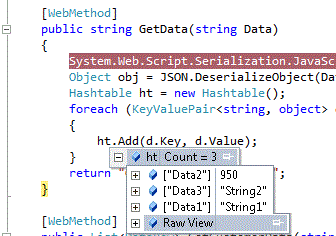
ASP.NET : Send multiple value to Server using JSON

This sample will show how to Send multiple value to Server using JSON.

Step 1 : Create WebService Method.
    [WebMethod]
    public string GetData(string Data)
    {
        System.Web.Script.Serialization.JavaScriptSerializer JSON = new System.Web.Script.Serialization.JavaScriptSerializer();
        Object obj = JSON.DeserializeObject(Data);
        Hashtable ht = new Hashtable();
        foreach (KeyValuePair d in (Dictionary)obj)
        {
            ht.Add(d.Key, d.Value);
        }
        return "GetData successfully.";
    }
Step 2 : Create JavaScript function using jQuery.ajax

Declare Array type in JavaScript and serialize to JSON Data and pass value to WebService.

    function SendData() {
        var arg = {};
        arg["Data1"] = "String1";
        arg["Data2"] = 950;
        arg["Data3"] = "String2";
        arg = Sys.Serialization.JavaScriptSerializer.serialize(arg);

        $.ajax({
            url: "WebService.asmx/GetData",
            data: "{ 'Data': '" + arg + "' }",
            dataType: "json",
            type: "POST",
            contentType: "application/json; charset=utf-8",
            dataFilter: function (data) { return data; },
            success: function (data) {
                alert(data.d);
            },
            error: function (XMLHttpRequest, textStatus, errorThrown) {
                alert(XMLHttpRequest.responseText);
            }
        });
    }

WebService can get JSON data that send from jQuery.ajax

enjoy ZomDev

Monday, September 10, 2012

ASP.NET jQuery UI : AutoComplete with DataTable via webservice

ASP.NET jQuery UI : AutoComplete with DataTable via webservice

This project can convert DataTable to jQuery AutoComplete DataSource.
We can get Data from DataBase and create to jQuery Datasource and display in webpage via webservice.
now we have 4 step to do this.

Step 1: Add css and script

Add scriptmanager to yourpage.
Add jquery-ui.css.
Add jquery.js
Add jquery-ui.js

Step 2: Add Control to yourpage

Add scriptmanager to yourpage.
Add TextBox named to txtCustomerSearch.
Add Image for loading named to imgLoading.

        ScriptManager
        txtCustomerSearch
        imgLoading
    

Step 3: Add Javascript

Add scriptmanager to yourpage.
Add TextBox named to txtCustomerSearch.
Add Image for loading named to imgLoading.

    $(function () {
        $("#<%=txtCustomerSearch.ClientID %>").autocomplete({
            minLength: 2,
            source: function (req, response) {
                $("#<%=imgLoading.ClientID %>").show();
                $.ajax({
                    url: "WebService.asmx/GetCustomerData",
                    data: "{ 'SearchValue': '" + $("#<%=txtCustomerSearch.ClientID %>").val() + "' }",
                    dataType: "json",
                    type: "POST",
                    contentType: "application/json; charset=utf-8",
                    dataFilter: function (data) { return data; },
                    success: function (data) {
                        $("#<%=imgLoading.ClientID %>").hide();
                        atcjq.onsuccess(data, response);
                    },
                    error: function (XMLHttpRequest, textStatus, errorThrown) {
                        $("#<%=imgLoading.ClientID %>").hide();
                        
                        alert(XMLHttpRequest.responseText);
                    }
                });
            },
            select: function (event, ui) {
                $("#<%=txtCustomerSearch.ClientID %>").val(ui.item.txtvalue)
                $("#<%=txtCustomerSearch.ClientID %>").attr("title", ui.item.txtvalue);
                atcjq.seturisearch();
                return false;
            }
        });
    });
    var atcjq = {
        onsuccess: function (data, response) {
            var d2 = Sys.Serialization.JavaScriptSerializer.deserialize(data.d);
            response($.map(d2, function (item) {
                var fval = item.CustomerName;
                return {
                    value: fval, label: fval, txtvalue: item.CustomerName
                }
            }))
        },
        seturisearch: function () {
            //alert($("#<%=txtCustomerSearch.ClientID %>").val());
        }
    }
    

Step 4: Using ConvertDataTableToJson to convert your datatable to json and send to html.

        Public Function ConvertDataTableToJson(ByVal dt As DataTable) As String
            Dim serializer As System.Web.Script.Serialization.JavaScriptSerializer = New System.Web.Script.Serialization.JavaScriptSerializer()
            Dim rows As New List(Of Dictionary(Of String, Object))
            Dim row As Dictionary(Of String, Object)

            For Each dr As DataRow In dt.Rows
                row = New Dictionary(Of String, Object)
                For Each col As DataColumn In dt.Columns
                    row.Add(col.ColumnName, dr(col))
                Next
                rows.Add(row)
            Next
            Return serializer.Serialize(rows)
        End Function
    

Don't hesitate to email me zomdev.